BUSINESS IDEAS
How to Boost Consumer Conversion, Acquisition, and Retention
Turning potential customers into loyal buyers takes more than a great product or an effective...
Learn More


 June 3, 2024
This article will show you how to modify Voicemail on Android smartphones as well as how to set everything up on your Android device.
Calling your mailbox directly to set up your voicemail is the most usual method. You can reach your voicemail in one of two ways: by dialing your phone number directly or by using the fast dial number found on most cell phones.
1. Launch the Phone application.
2. At the bottom of the screen, tap the dial pad icon.
3. Hold down the “ 1 ” until the call is answered. Or, press the call button after entering your whole phone number.
4. Set up a pin code and a message by following the prompts.
Visual Voicemail is supported on Android phones running Android 6.0 or newer, as long as the carrier supports it. However, not all carriers provide Visual Voicemail, and some even charge extra for it. If your phone supports Visual Voicemail, follow these steps to get started.
1. Launch the Phone application.
2. Find and tap the Voicemail icon. This icon can be found toward the bottom of the app or adjacent to the Start Call button on the Keypad, depending on the phone.
3. Tap the three dots in the top right corner of the program to update any Voicemail settings.
4. Scroll down the list and tap Voicemail.
5. You can now modify your voicemail greeting and set other notification choices.
Another fantastic tool for making calls and receiving voicemails is Google Voice. Because you can access it from a computer by visiting the Google Voice website, you might wish to utilize it instead of your conventional phone voicemail.
To set up voicemail in Google Voice, follow the steps below.
1. Go to Google Voice’s website and create a Google Voice account, or use the Google Voice app on your Android device.
2. Open the Google Voice app on your phone once your account is set up.
3. Scroll to the bottom of the app and tap the Voicemail icon.
4. You may check your voicemails here. Tap the menu button in the top left to adjust the settings.
5. Select Settings from the drop-down menu.
6. Go to the Voicemail area and scroll down. You can choose to receive voicemail through email, alter your greeting, and choose which form of voicemail notifications you receive for phone messages at your Google Voice account.

Telecom Lead Management: Follow Up Without Losing Sales
Oct 19, 2026

Franchise Law Basics: What Every Owner Should Know
Oct 16, 2026

How Cox Business Products Help Dealers Drive Growth
Oct 15, 2026

7 Reasons to Become a Vivint Authorized Reseller
Oct 14, 2026

Why Become an Internet Provider Dealer? 7 Key Benefits
Oct 13, 2026


9
Oct, 2026
BUSINESS IDEAS
Turning potential customers into loyal buyers takes more than a great product or an effective...
7
Sep, 2026
HOME SECURITY
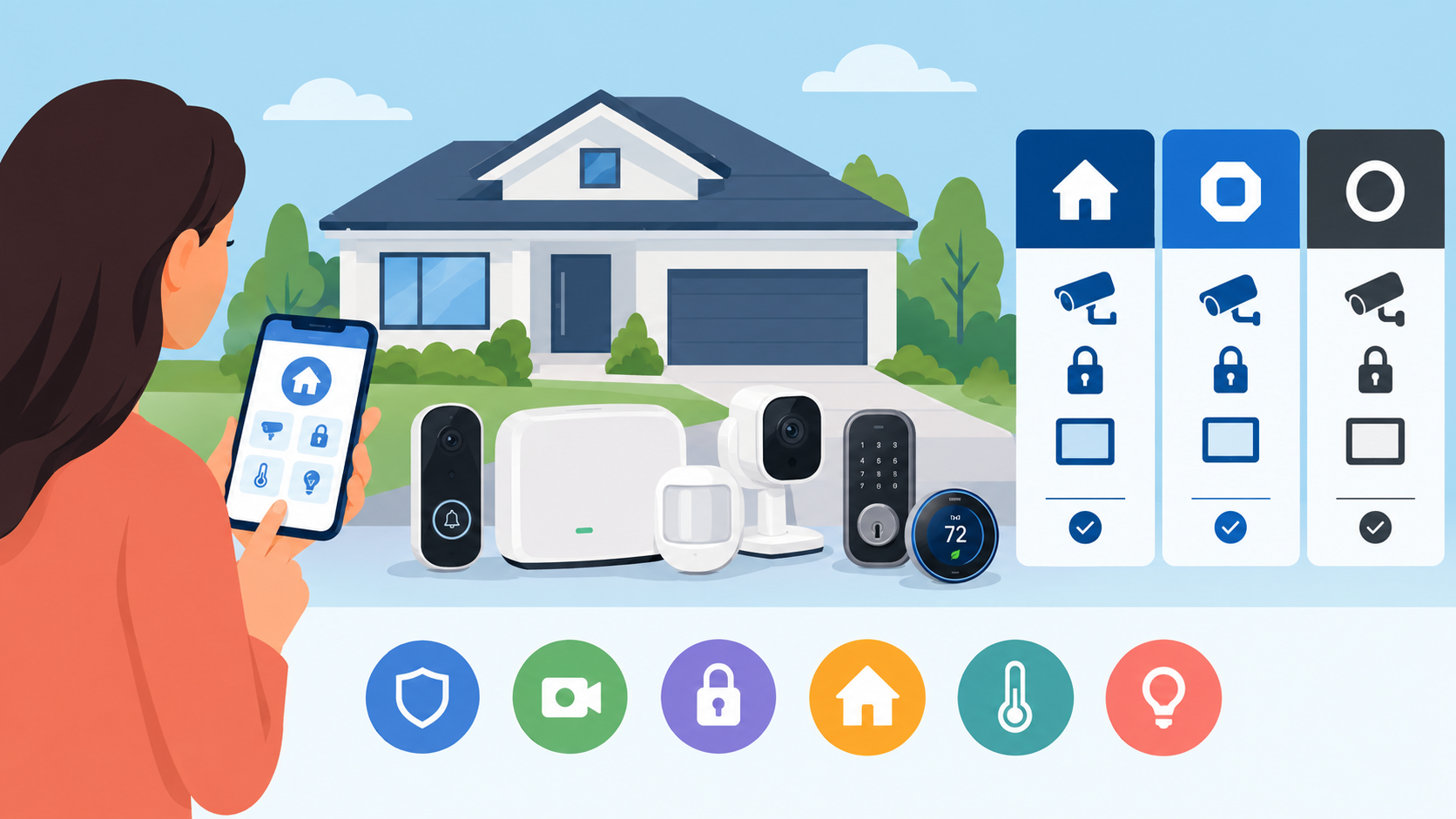
Choosing the right home security system is about more than installing a few cameras or...

19
Aug, 2026
HOME SECURITY
Customer lifetime value telecom dealer performance depends on one core metric — CLV — the...