HOME WIFI
Safe WiFi Practices: Guarding Your Network Against Intruders
In our interconnected world, WiFi has become an essential part of our daily lives. From...
Learn More

 June 7, 2024
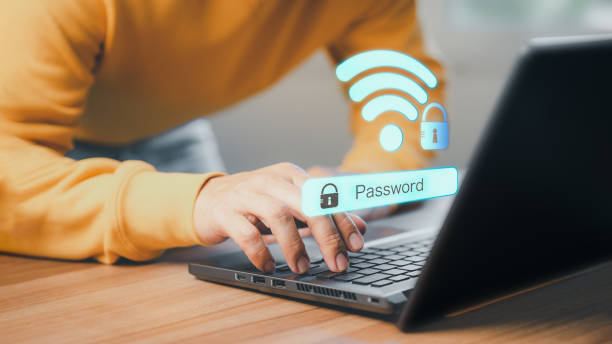
Imagine this: you have friends over, and everyone needs to connect to your WiFi. Instead of passing around a sticky note with your complex password, you can seamlessly share it between iPhones in just a few taps. Apple has made it incredibly easy sharing WiFi passwords, ensuring that everyone stays connected without the hassle. In this guide, we’ll walk you through the steps to effortlessly share WiFi passwords between iPhones, making your life a whole lot easier.
Sharing WiFi passwords is not just about convenience; it’s about enhancing the overall experience of connectivity. Here are a few scenarios where this feature is particularly useful:
Before you start sharing your WiFi passwords, there are a few requirements to ensure everything goes smoothly.
Both devices need to be iPhones or iPads. This feature is built into iOS and iPadOS, so it won’t work with non-Apple devices.
Make sure both devices are running iOS 11 or later. Older versions do not support this feature.
To make sure you’re ready to share WiFi passwords, follow these preparation steps:
Ensure both iPhones are up to date. Go to Settings > General > Software Update to check for and install any available updates.
Both WiFi and Bluetooth must be turned on for both devices. Swipe down from the top-right corner to open the Control Center and enable these features if they’re not already on.
The person you’re sharing the password with needs to be in your Contacts list with their Apple ID email address. This ensures the devices recognize each other.
Now, let’s dive into the step-by-step process of sharing your WiFi password.
Make sure your iPhone is connected to the WiFi network you want to share.
Bring the iPhone that needs the WiFi connection close to the one that’s already connected. They need to be within Bluetooth range.
A prompt will appear on your connected iPhone asking if you want to share the WiFi password. Tap Share Password.
The receiving iPhone will get a notification with the password automatically filled in. Simply tap Join to connect to the WiFi network.
Sometimes, things don’t go as planned. Here are some common issues and how to fix them:
While sharing WiFi passwords is convenient, security should always be a priority.
Sharing passwords securely prevents unauthorized access to your network. Only share your WiFi password with trusted individuals.
Once you’ve got the basics down, here are some advanced tips to better manage your WiFi network.
A strong WiFi password includes a mix of letters, numbers, and special characters. Avoid using easily guessable information like names or birthdays.
Access your router’s settings to manage connected devices and control access. This can usually be done through a web interface provided by your router manufacturer.
Set up a guest network for visitors. This keeps your main network secure while still providing internet access to guests.
If for some reason you can’t use the built-in iPhone feature, here are some alternatives.
You can create a QR code for your WiFi network. Apps like Visual Codes or websites like QRStuff allow you to generate a QR code that others can scan to join your network.
Sometimes, the old-fashioned way is necessary. Share the password verbally or write it down for your guest to manually enter.
Sharing WiFi passwords between iPhones is a simple yet powerful feature that enhances connectivity and convenience. By following the steps outlined in this guide, you can easily share your WiFi network without the hassle of remembering or typing long passwords. Stay connected, stay secure, and make the most of your iPhone’s capabilities!

How to Run Effective Monthly Business Plan Reviews
Apr 3, 2026

What Is Outbound Marketing and Why It Still Works
Apr 2, 2026

Digital Marketing Plans That Drive Real Results
Apr 1, 2026

How to Negotiate Better Dealer Program Contracts
Mar 31, 2026

Why Cox Authorized Dealer And Retailers Are Worth It in 2026
Mar 30, 2026

3
Jun, 2024
HOME WIFI
In our interconnected world, WiFi has become an essential part of our daily lives. From...

3
Jun, 2024
HOME WIFI
WiFi passwords can be very long and troubling, making them difficult to share with family...
3
Jun, 2024
HOME WIFI
You've got at least eight computers that use your home internet connection if you're like...