HOME WIFI
WiFi Connection Made Easy: Sharing Passwords Between iPhones
Imagine this: you have friends over, and everyone needs to connect to your WiFi. Instead...
Learn More

 October 6, 2026
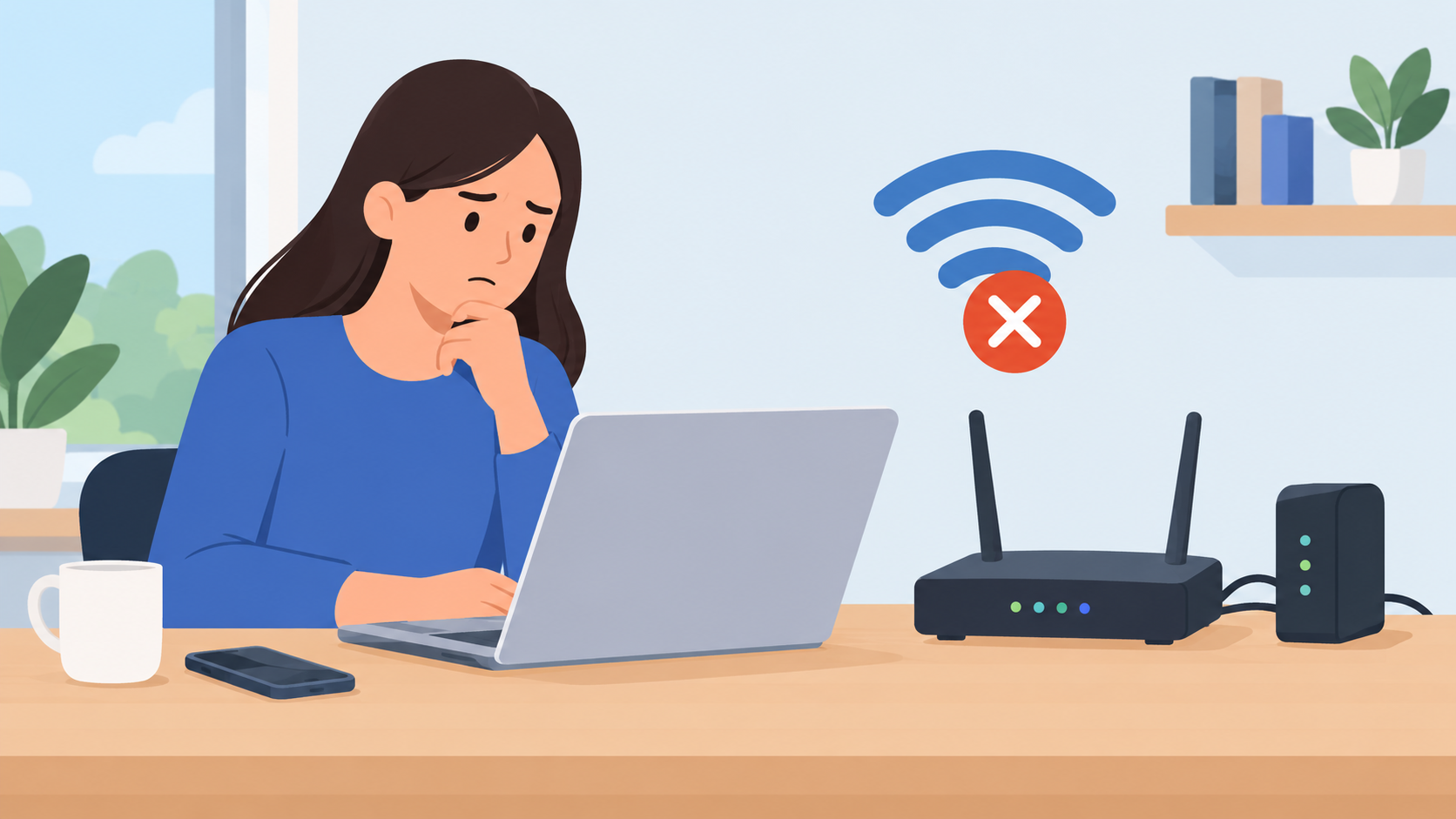
When you can’t connect to the internet, the problem may be easier to fix than it first appears. A loose cable, weak Wi-Fi signal, incorrect network settings, router problem, or even a website outage can make your internet seem completely unavailable.
Before contacting your internet provider, it helps to narrow down where the problem is coming from. Is the issue affecting only one device, your entire home network, or every website you try to visit?
This troubleshooting guide covers seven common internet connection problems and solutions, including Wi-Fi issues, IP address conflicts, firewall problems, weak wireless signals, and changed router settings. Working through these checks in order can help you restore your connection without unnecessary troubleshooting.
One of the easiest things to overlook is the physical connection between your internet equipment and your devices.
If your modem or router has been unplugged, a network cable has become loose, or a power adapter has been accidentally disconnected, your devices may show that Wi-Fi is available while still having no internet access.
For wired connections, check both ends of the Ethernet cable. Make sure the cable is firmly connected to the computer and the router or network switch.
For Wi-Fi, confirm that Wi-Fi is turned on and that your device is connected to the correct wireless network.
Start with the modem and router. Make sure both devices have power and check their indicator lights for anything unusual.
If your router appears frozen or is not responding, restarting it can often resolve a temporary connection problem. Turn off the modem and router, wait for a short period, and then power them back on.
Give the equipment several minutes to reconnect before testing the internet again.
If you are using a computer with a physical Wi-Fi switch or function key, make sure wireless connectivity has not accidentally been disabled.
If other devices in your home can access the internet normally, the problem is more likely to be specific to the device you are troubleshooting.
Sometimes your internet connection is working perfectly, but the website you are trying to access is temporarily unavailable.
This can happen when a website experiences server problems, maintenance, DNS issues, or unusually high traffic. If you only test one website, it is easy to mistake a website outage for an internet connection problem.
Open a few different websites and see whether they load normally.
For example, if one website refuses to load but several others work, your internet connection may not be the problem.
You can also try using a different device connected to the same Wi-Fi network. If websites work normally on another phone, laptop, or tablet, the problem is probably related to the original device.
This simple test can save you from changing network settings unnecessarily.
If several websites fail to load across multiple devices, the problem is more likely to involve your router, modem, Wi-Fi network, DNS settings, or internet service.
At that point, continue with the other troubleshooting steps below.
Your devices need an IP address to communicate properly over a network. In some situations, two devices can end up using the same IP address, creating a conflict that prevents one or both devices from communicating correctly.
An IP address conflict can occur because of a network configuration problem, DHCP issue, manually assigned addresses, or changes to the network.
You may notice that your device is connected to Wi-Fi but cannot access websites or other network services.
One way to resolve a temporary IP conflict is to have your device obtain a new IP address from the router.
On many computers, disconnecting and reconnecting to the Wi-Fi network can be enough. Restarting the device can also force it to establish a fresh network connection.
If you are using a manually configured static IP address, check the network settings carefully to make sure the address does not duplicate another device on the network.
If the problem returns frequently, the issue may involve your router’s DHCP configuration or another device using a manually assigned address.
In that situation, checking the router’s network settings or contacting your internet provider may be necessary.
Avoid changing advanced network settings randomly, especially if you are not sure whether your network uses static or automatically assigned IP addresses.
A firewall is designed to protect your computer by controlling network traffic. However, firewall software can sometimes block legitimate connections.
This may happen after installing new security software, changing firewall rules, or updating an existing security program.
The problem can be particularly confusing when two firewall applications are running on the same computer and their rules conflict.
If the internet stopped working shortly after installing or updating security software, the firewall is worth checking.
Review the firewall settings and look for recently blocked applications or network connections.
As a temporary troubleshooting step, you may disable the firewall to determine whether it is responsible. If the internet starts working immediately afterward, turn the firewall back on and adjust its settings rather than leaving your computer unprotected.
Do not keep your firewall disabled permanently just to maintain internet access.
Think about what changed immediately before the connection problem started.
For example:
If the timing matches, review the new settings before changing other network configurations.
A device can remain connected to a Wi-Fi network even when the wireless signal is too weak to provide a reliable internet connection.
Wi-Fi performance generally decreases as you move farther away from the router. Walls, floors, furniture, appliances, and other sources of wireless interference can also affect the signal.
This is why your internet may work perfectly in one room but become slow or unreliable in another.
The simplest test is to move your device closer to the wireless router.
If the connection becomes noticeably better, weak Wi-Fi coverage is probably contributing to the problem.
Try testing the connection in several locations around your home. This can help identify areas where the wireless signal becomes unreliable.
The router’s location can make a significant difference.
Whenever possible, place it in a relatively open and central location rather than inside a cabinet, behind large objects, or in an area surrounded by thick walls.
Other wireless devices and household electronics may also contribute to interference.
If certain areas of your home consistently have weak Wi-Fi, you may need to improve coverage with a better router placement, mesh Wi-Fi system, or appropriately positioned wireless extender.
A weak Wi-Fi signal does not necessarily mean your internet provider is experiencing an outage.
Your internet service could be working normally while the wireless connection between your device and router is weak.
Understanding this distinction can make troubleshooting much faster.
If your device suddenly stops connecting to Wi-Fi after previously working normally, a change to the router’s wireless configuration could be responsible.
Modern wireless networks use security settings such as WPA2 or WPA3. Devices need the correct network credentials to establish a secure connection.
If the Wi-Fi password has changed, devices that still have the old password saved may fail to connect.
Confirm that you are using the current wireless password.
If the router’s password was recently changed, you may need to remove the saved network from your device and reconnect using the new credentials.
Make sure the password is entered exactly as configured because Wi-Fi passwords are case-sensitive.
A change to the router’s SSID, security mode, wireless channel, or other configuration can also affect connectivity.
If the network was recently reconfigured, review those settings.
For example, if the router was changed to use a wireless mode that an older device does not support properly, that particular device may have difficulty connecting even though newer devices continue to work.
Wireless networks operate on specific channels. In areas with many nearby networks, channel congestion can contribute to poor wireless performance.
Most modern routers can automatically select an appropriate channel, but manually configured settings may sometimes need to be reviewed.
If you recently changed your router’s wireless configuration, consider whether that change happened at the same time the connection problem started.
If you’ve checked the cables, Wi-Fi signal, firewall, IP address, and router settings but still can’t connect to the internet, the problem may be with the modem, router, or your internet service provider.
A complete network restart can clear temporary connection problems and allow your equipment to establish a fresh connection.
If you have separate modem and router devices, turn them off and disconnect their power.
Wait briefly, then reconnect the modem first. Give it time to establish a connection with your internet provider.
Once the modem has finished connecting, power on the router and wait for the wireless network to become available.
Reconnect your device and test several websites.
If you use a combined modem-router gateway, follow the manufacturer’s recommended restart procedure.
If multiple devices cannot access the internet even after restarting your equipment, there could be an outage or service problem in your area.
Check your provider’s service-status information if available. You can also contact customer support to confirm whether there is a known outage, maintenance event, or problem affecting your connection.
Keep in mind that an outage is not always the cause. A damaged cable, equipment failure, account issue, or signal problem can produce similar symptoms.
Knowing whether the problem affects one device or your entire network can quickly narrow down the cause.
| What you notice | Most likely cause |
|---|---|
| Only one device cannot connect | Device settings, Wi-Fi adapter, firewall, or IP issue |
| All devices cannot connect | Router, modem, or provider issue |
| Wi-Fi works close to router but not far away | Weak wireless coverage |
| One website will not load | Website or server problem |
| Wi-Fi connects but says “No Internet” | Router, modem, DNS, or provider issue |
| Connection stopped after changing Wi-Fi password | Saved network credentials |
| Internet stopped after security software update | Firewall or security settings |
| Connection repeatedly drops | Signal, interference, router, or provider issue |
This simple comparison can help you avoid making unnecessary changes to your computer or router.
If none of the steps above restores your connection, avoid changing multiple advanced settings at once.
Making several changes simultaneously can make it difficult to identify what actually fixed or caused the problem.
Instead, document what you have already tested.
Note whether:
This information can make it easier for your internet provider or technical support team to identify the underlying issue.
If your connection is consistently unreliable despite troubleshooting, it may also be worth reviewing whether your current internet plan provides enough speed and coverage for the number of people and devices using your network.
Your device can be connected to the router’s Wi-Fi network without having access to the internet. The problem may be with the modem, router, DNS settings, internet provider, or connection between your router and the provider.
If other devices can access the internet normally, the problem is probably specific to the device that cannot connect. Check its Wi-Fi settings, saved network password, firewall, IP configuration, and network adapter.
Frequent disconnections can be caused by weak Wi-Fi coverage, wireless interference, router problems, outdated software, damaged cables, or an unstable connection from your internet provider.
Yes. Restarting network equipment is a basic troubleshooting step that can resolve temporary connection problems. If you have separate modem and router devices, restarting them in the proper order can help establish a fresh connection.
This usually means your device has successfully connected to the router but the router is not providing working internet access. Check the modem, router, cables, DNS settings, and provider connection.
Yes. Incorrect firewall rules or conflicts between security applications can block legitimate network traffic. If the problem began after installing or updating security software, review the firewall settings.
Try several other websites first. If they load normally, your internet connection is probably working and the problem may be limited to the website you’re trying to access.
Contact your provider when multiple devices cannot access the internet after basic troubleshooting, especially if restarting your equipment does not help or you suspect an outage, line problem, or service issue.
When you can’t connect to the internet, the cause isn’t always a major technical problem. Loose cables, incorrect Wi-Fi credentials, weak wireless signals, IP conflicts, firewall settings, and temporary router issues can all interrupt your connection.
The best approach is to troubleshoot systematically. Start with the simplest possibilities, determine whether the problem affects one device or your entire network, and then move on to router and service-related checks.
By narrowing down the problem before making major changes, you can often restore your connection faster and know when it is time to contact your internet provider.

Telecom Lead Management: Follow Up Without Losing Sales
Oct 19, 2026

Franchise Law Basics: What Every Owner Should Know
Oct 16, 2026

How Cox Business Products Help Dealers Drive Growth
Oct 15, 2026

7 Reasons to Become a Vivint Authorized Reseller
Oct 14, 2026

Why Become an Internet Provider Dealer? 7 Key Benefits
Oct 13, 2026

7
Jun, 2024
HOME WIFI
Imagine this: you have friends over, and everyone needs to connect to your WiFi. Instead...

3
Jun, 2024
HOME WIFI
In our interconnected world, WiFi has become an essential part of our daily lives. From...

3
Jun, 2024
HOME WIFI
WiFi passwords can be very long and troubling, making them difficult to share with family...