
 March 18, 2026
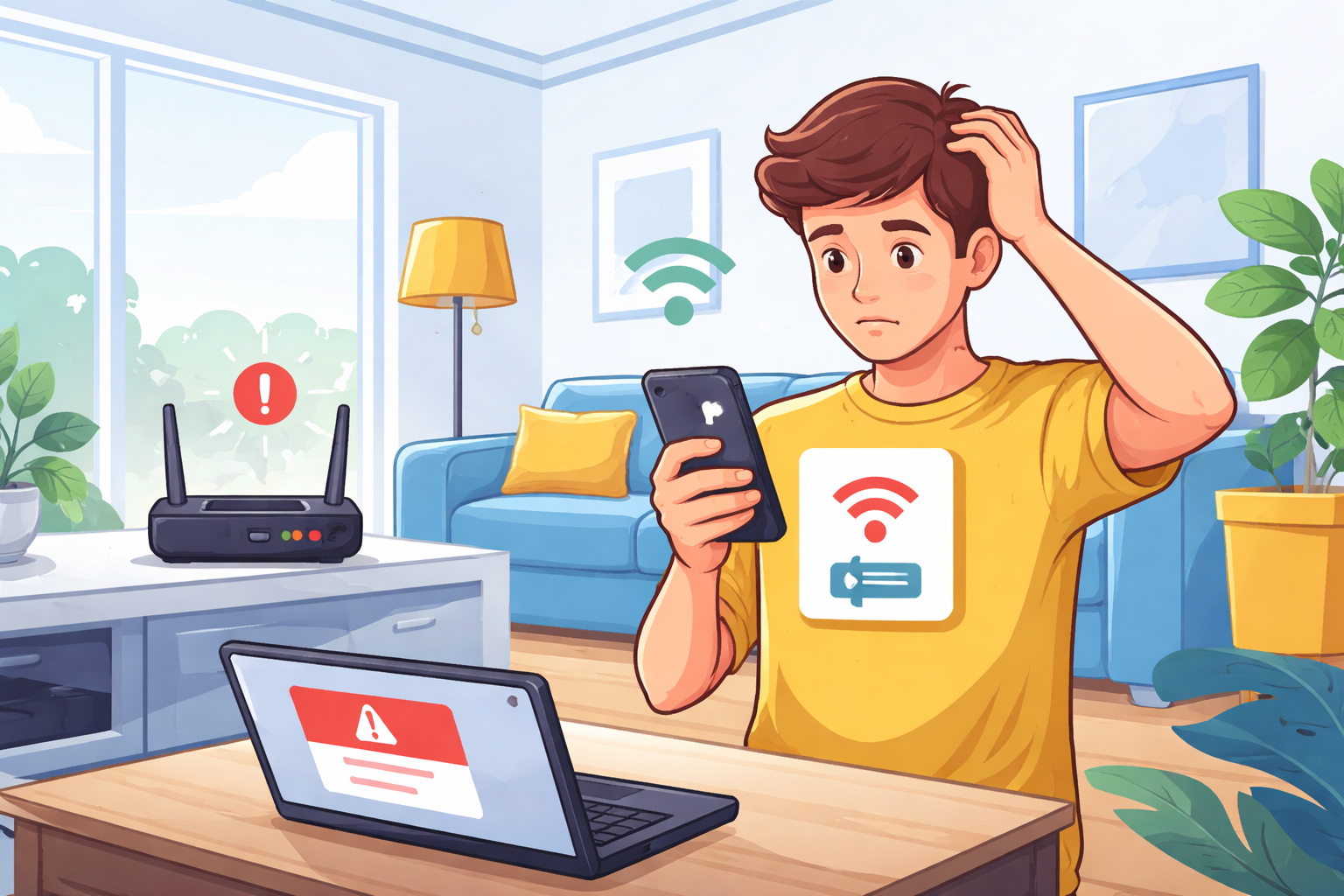
If your Android phone keeps showing the “Sign-In to WiFi Network” message, even when your connection seems fine, you’re not alone. This is a common connectivity issue that can interrupt browsing, streaming, and everyday tasks.
In this updated guide, you’ll learn why this WiFi sign-in problem happens, how to fix it step by step, and how to prevent it from coming back. Whether you’re using home internet or public WiFi, these practical solutions will help you stay connected without frustration.
Why Android Shows “Sign-In to WiFi Network”
When your Android device connects to a WiFi network, it runs a quick check to confirm that the network has internet access. If the phone detects a problem—such as no internet, limited access, or a redirected login page—it triggers the sign-in notification.
This behavior is especially common on networks that use a captive portal, such as:
-
Coffee shops
-
Hotels
-
Airports
-
Shared office networks
However, it can also appear on private home WiFi due to router misconfigurations, DNS issues, or software glitches.
Check If the Problem Is Your Network
Before adjusting your phone settings, start by confirming whether the issue is coming from your WiFi network.
Quick Network Troubleshooting Steps
-
Restart your router and modem
Turn both devices off for 30 seconds, then power them back on. -
Test another device
Connect a laptop or another phone to the same network. If it also has issues, the problem is likely the network. -
Reconnect your Android device
Go to WiFi settings, tap your network, select Forget, and reconnect using your password. -
Check for captive portal login
Open a browser and try visiting any website. This often triggers the login page if one exists.
If your internet connection is unstable, you may want to review ways to improve performance, such as this practical breakdown of improving home internet speed.
Adjust Android WiFi Preferences
Sometimes, the issue isn’t the network—it’s how your Android device handles WiFi detection.
Disable Automatic Sign-In Notifications
-
Open Settings
-
Go to Network & Internet → Internet → WiFi preferences
-
Turn off Sign-in to WiFi network notifications
This prevents your phone from repeatedly prompting you when it mistakenly detects a login requirement.
Keep in mind: disabling this feature means you won’t get alerts for real login-required networks.
Update Your Android Software
Outdated software can cause connectivity bugs, including repeated WiFi sign-in prompts. Android updates often include fixes for network authentication and stability.
How to Check for Updates
-
Go to Settings → System → Software Update
-
Tap Check for updates
-
Install any available updates
After updating, restart your device and reconnect to WiFi.
Turn Off Persistent Network Notifications
If your WiFi is working but the notification won’t go away, you can disable it directly.
Steps to Disable the Alert
-
Pull down the notification panel
-
Long-press the WiFi sign-in alert
-
Tap Settings or Details
-
Select Turn off notifications
This won’t fix the root cause, but it removes the distraction if your connection is stable.
Restart Your Device After Changes
It’s a simple step, but restarting your phone can resolve many temporary network issues.
A reboot helps:
-
Clear cached network data
-
Refresh system processes
-
Apply recent changes
If you’re still experiencing issues, toggle Airplane Mode on and off to reset wireless connections quickly.
Reset Network Settings (Advanced Fix)
If the problem persists, your device’s network configuration may be corrupted.
How to Reset Network Settings
-
Go to Settings → System → Reset options
-
Tap Reset WiFi, mobile & Bluetooth
-
Confirm and restart your device
This will erase:
-
Saved WiFi networks
-
Bluetooth connections
-
VPN configurations
Make sure you have your WiFi passwords ready before proceeding.
Check If the Issue Is External
If multiple devices on the same network are experiencing the same issue, the problem likely isn’t your phone.
Possible External Causes
-
Internet service outages
-
Router firmware issues
-
ISP configuration problems
-
Expired captive portal sessions
In these cases, contact your internet provider or network administrator for support.
Use Mobile Data as a Temporary Backup
If you need immediate access while troubleshooting WiFi, switch to mobile data.
How to Enable Mobile Data
-
Go to Settings → Network & Internet → Mobile Network
-
Toggle Mobile Data on
Some Android devices also include Smart Network Switching, which automatically switches to mobile data when WiFi becomes unreliable.
Prevent Future WiFi Sign-In Issues
Once you’ve fixed the issue, take a few steps to prevent it from happening again:
-
Keep your Android system updated
-
Restart your router regularly
-
Avoid connecting to unstable public networks
-
Use reliable DNS settings (like Google DNS or Cloudflare)
-
Limit automatic connections to unknown networks
These small habits can significantly improve your connection stability.
Final Thoughts
The “Sign-In to WiFi Network” message on Android is usually a result of network detection errors—not always a real login requirement. By checking your router, adjusting your phone settings, and keeping your software updated, you can resolve the issue quickly.
Start with the basics, then move to advanced fixes if needed. In most cases, a simple reconnect or restart is enough to restore a stable connection.